
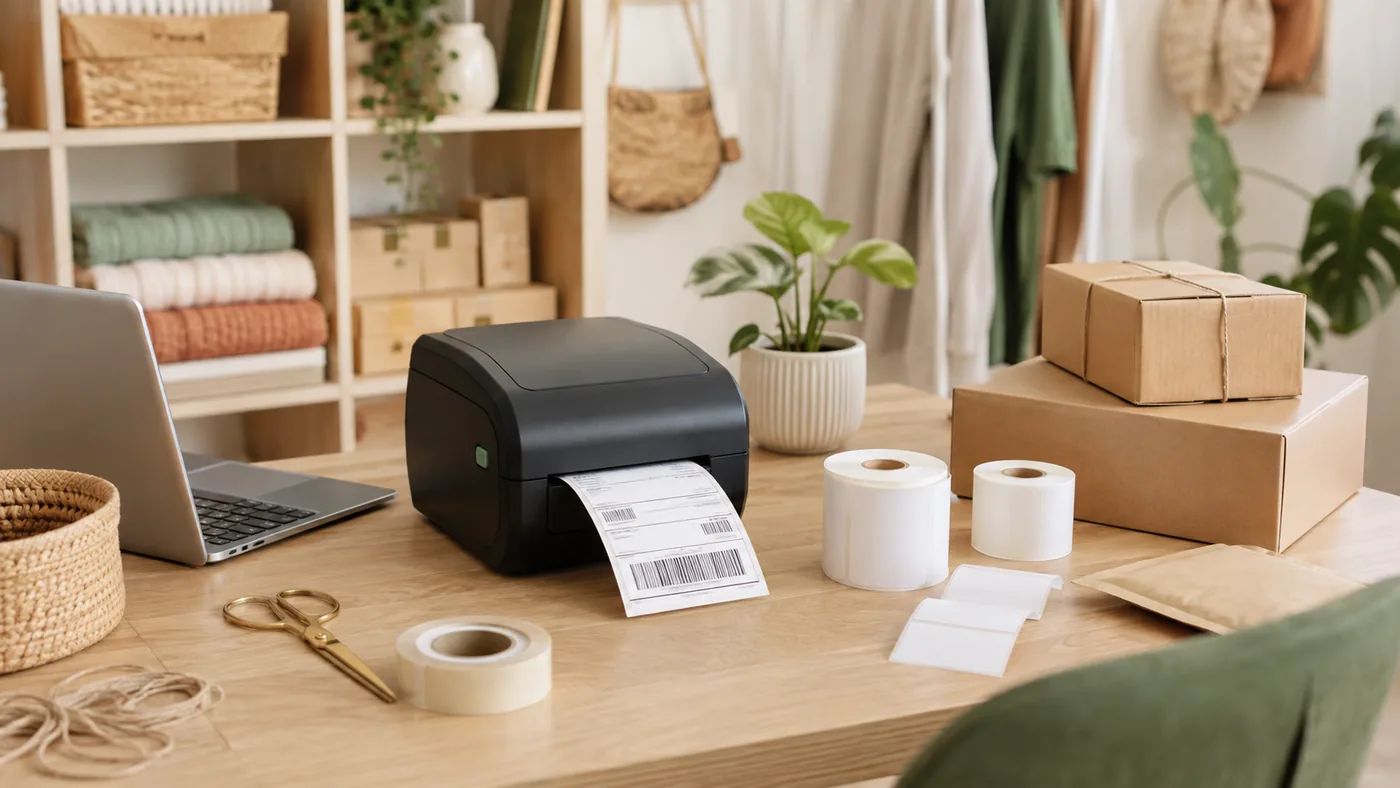
A shipping label printer should remove a repeated step from your current process. Choose the printing route first: a computer beside the packing desk, a phone using a supported app, or several devices sharing a network printer.
This is a research-based comparison using manufacturer pages and setup guidance checked October 5, 2026, with RW401AP connection and label-size guidance added October 10, 2026. We have not personally tested these printers, measured their reliability, or established a universal best-value ranking. Availability and supported software can change.
Disclosure: This post contains affiliate links. If you purchase through them, we may earn a commission at no additional cost to you. See our Affiliate Disclosure.
Before buying: check the current label process
- Can the existing printer produce the carrier’s required label clearly at the correct size? If yes, keep it while the workflow remains manageable.
- Which repeated action causes the interruption: changing print settings, trimming paper, connecting a device, or handling supplies?
- Would a dedicated printer remove that action, and can you accommodate both the printer and its label supply?
A thermal printer does not solve incorrect parcel details or a label matched to the wrong order. Use the home shipping-label guide to check that process first.
Before comparing models, use our free printer compatibility worksheet to record your exact device, carrier label file, required app or driver, connection, and feed space. Keep an unanswered requirement marked as unknown; a feature list alone does not confirm that the whole route works.
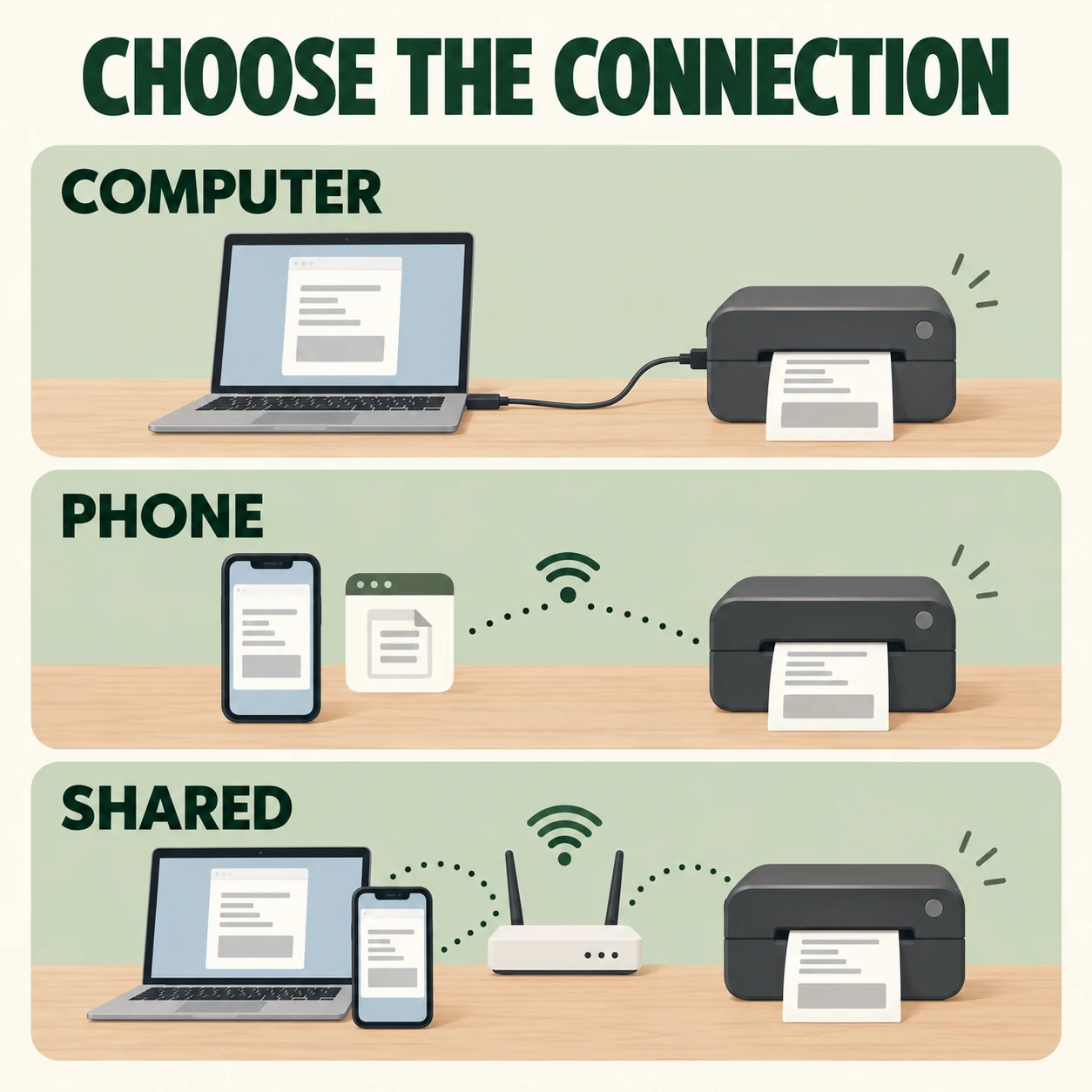
Choose a connection workflow
| Your workflow | Starting connection to evaluate | Check |
|---|---|---|
| One computer at the desk | USB | Current operating system, driver, port, and document format |
| Phone-based order handling | Supported Bluetooth/app route | Exact phone OS, required app, and PDF import/printing steps |
| Several devices | Network/Wi-Fi route | Setup requirements, discovery, and supported devices |
Bluetooth is not the same as AirPrint or a general-purpose wireless print menu. A model may require its own mobile app. “Compatible with a marketplace” also does not mean the printer creates postage: the service generates the label, and a supported printing route prints it.
Compare the researched models
| Model / manufacturer source | Workflow fit to evaluate | Important limit |
|---|---|---|
| MUNBYN RW403B | USB computer or supported Bluetooth mobile workflow | Confirm the current app/OS route and supported label range |
| MUNBYN RW941BP | 300 DPI USB or supported Bluetooth/app route | Check actual-size text and graphics, device/software support, and media. Bluetooth does not establish AirPrint support. |
| MUNBYN RW401AP | Apple AirPrint / supported Wi-Fi workflow, with USB available | Initial network setup still applies; label-size support depends on the device and printing route |
| Rollo Wireless X1040 | Devices sharing a Wi-Fi network | Follow network setup; USB is also documented as an alternative |
| Brother QL-1110NWB | Network/multiple connection needs and DK-roll workflow | Uses Brother DK media; do not treat generic fanfold stock as interchangeable |
| Phomemo PM-241-BT | USB or supported Bluetooth mobile printing | Check Labelife/mobile steps, OS support, and the US plug option |
| OFFNOVA ZPL-2054N | Bluetooth model listed in the manufacturer catalog | Confirm exact app/device support and current availability before choosing |
These are options to investigate, not rankings from hands-on testing. Brother’s page showed the QL-1110NWB out of stock during this check; do not assume a similarly named replacement has identical specifications. OFFNOVA availability displays vary by product/option, so the catalog listing alone is not proof that the configuration you need can be ordered.
Rollo documents a USB route for the X1040 as well as its wireless setup. Decide whether you need network printing rather than paying for a connection you will not use.
When AirPrint is the connection you need
If your recurring problem is opening a separate Bluetooth print app for labels from an Apple device, compare an AirPrint route rather than buying another Bluetooth-only option. MUNBYN’s RW401AP is a Wi-Fi/AirPrint candidate with a documented USB alternative. AirPrint printing does not remove the initial network setup: the maker recommends its app for configuring the connection.
Check the exact label format with your device before choosing. MUNBYN’s device-specific label-size guide includes 4×6 for iOS and distinguishes supported sizes across printing routes. Do not infer that every small sticker size works from every print menu. Its network configuration guidance and USB fallback guidance describe setup options. Keep a suitable current printing route if it already handles the job; this is a workflow alternative, not an independently tested reliability upgrade.
Check the MUNBYN RW401AP AirPrint option →
This affiliate link leads to MUNBYN’s US store. Confirm the selected model, current availability, delivery region, and the requirements described above before ordering.
Count the whole footprint
Measure the housing, label supply or holder, clear feed path, power lead, data cable, and room to reload. An external-feed printer with a fanfold stack behind it can need more depth than the product’s housing dimensions suggest.
An internal-roll design has different media constraints, including roll size and core/holder requirements. Check the exact model. Use Fanfold vs. Roll Labels for a feed-path trial, then record the space in the Workspace Planner.
A natural MUNBYN option after the decision
If your existing printer’s paper handling is a recurring bottleneck and a supported Bluetooth/USB workflow fits your devices, the RW403B is one option to evaluate. Confirm its current software support, label compatibility, and the full desk footprint before ordering.
When you need 300 DPI with a USB or Bluetooth route
MUNBYN lists the RW941BP as a 300 DPI direct thermal printer with USB and Bluetooth connectivity. It is another option to investigate when your labels contain fine text or graphics and a supported USB or app-based workflow fits. Check the actual document at its intended size, required app or driver, and compatible media before choosing. Resolution alone does not establish legibility or scanner acceptance, and we have not tested this model’s print quality or reliability.
Check the MUNBYN RW941BP price and specifications →
This affiliate link may earn us a commission at no extra cost to you and leads to MUNBYN’s US store. Confirm the exact configuration, delivery region, current availability, and full delivered cost. The RW941BP manufacturer page and purchase option were checked November 22, 2026. Keep a working existing printer when it meets your requirements.
Compare cost without a best-value claim
- Printer price and the exact configuration being sold.
- Compatible label cost per usable label, including delivery and wasted stock.
- Any required holder, cable, adapter, or app/service cost.
- The repeated step the purchase would actually remove.
- Support, current software availability, and return conditions relevant to the seller.
Use the keep-or-upgrade printer cost calculator to compare your current method with one compatible alternative. Enter your own upfront quote, label cost, reprints, and handling time. The results separate cash cost from the value you assign to time; they do not certify compatibility or promise savings.
Do not compare advertised labels-per-minute figures unless the label formats and test conditions match. Brother’s published address-label speed, for example, is not a measurement of 4×6 shipping-label throughput.
Acceptance checklist for the printing route
- The downloaded carrier label prints without cropping or unwanted scaling.
- The entire required label, including barcode and service information, is clear.
- The correct order remains paired with the printed label.
- A reload or media change can be completed using the model’s instructions.
- The printer, supply, and cables fit without blocking parcel preparation.
Use a permitted sample or test process supported by your shipping service; do not purchase duplicate postage simply to test a printer. If the current setup passes and printing is not the bottleneck, another device can wait.